
The Infinite Curves plugin brings a different approach to color grading in Photoshop. Instead of relying entirely on traditional curves graphs, it uses interactive RGB and RYB color wheels to generate color adjustments, with individual controls for their strength and tonal placement. We particularly appreciated this approach because it gave us more creative control over the final image while making color adjustments easier to manage.
Developed by Infinite Tools, the plugin combines visual color manipulation with Photoshop adjustment layers. For photographers looking to shape the atmosphere of a portrait or landscape without manually building every RGB curve, this combination is worth exploring. But choosing a color from a wheel is only part of the advantage. The real strength of Infinite Curves lies in deciding which colors to introduce, and how they should affect the image. That level of control opens up more creative possibilities, so let’s take a closer look at how the plugin works and what it can bring to your photo editing game.
Bonus for readers: Want more control over your Photoshop color grading? Explore Infinite Curves from Infinite Tools and use code CWSAL15 for 15% off your purchase.
What Does the Infinite Curves Plugin Actually Do?
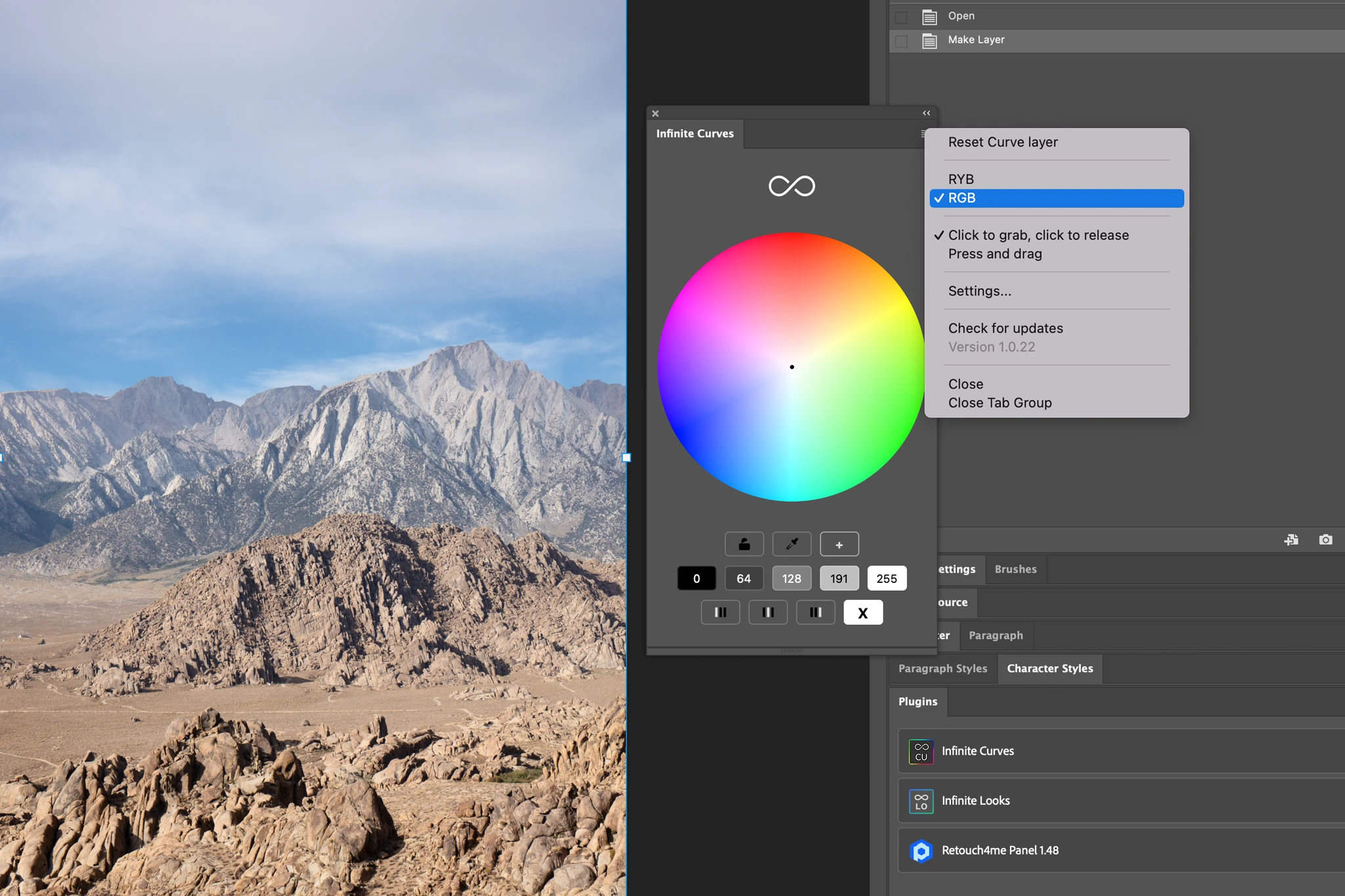
Infinite Curves is a Photoshop color grading plugin that converts adjustments made through an interactive color wheel into editable tonal curves. Instead of manually adjusting individual RGB channels in Photoshop’s native curves panel, we can place color points on the wheel and refine how those changes affect the image’s tonal range. This visual approach makes color grading more intuitive. Rather than figuring out how moving points on an RGB curve affects color and tonal relationships, we can focus on the color direction we want to introduce and fine-tune the result from there.
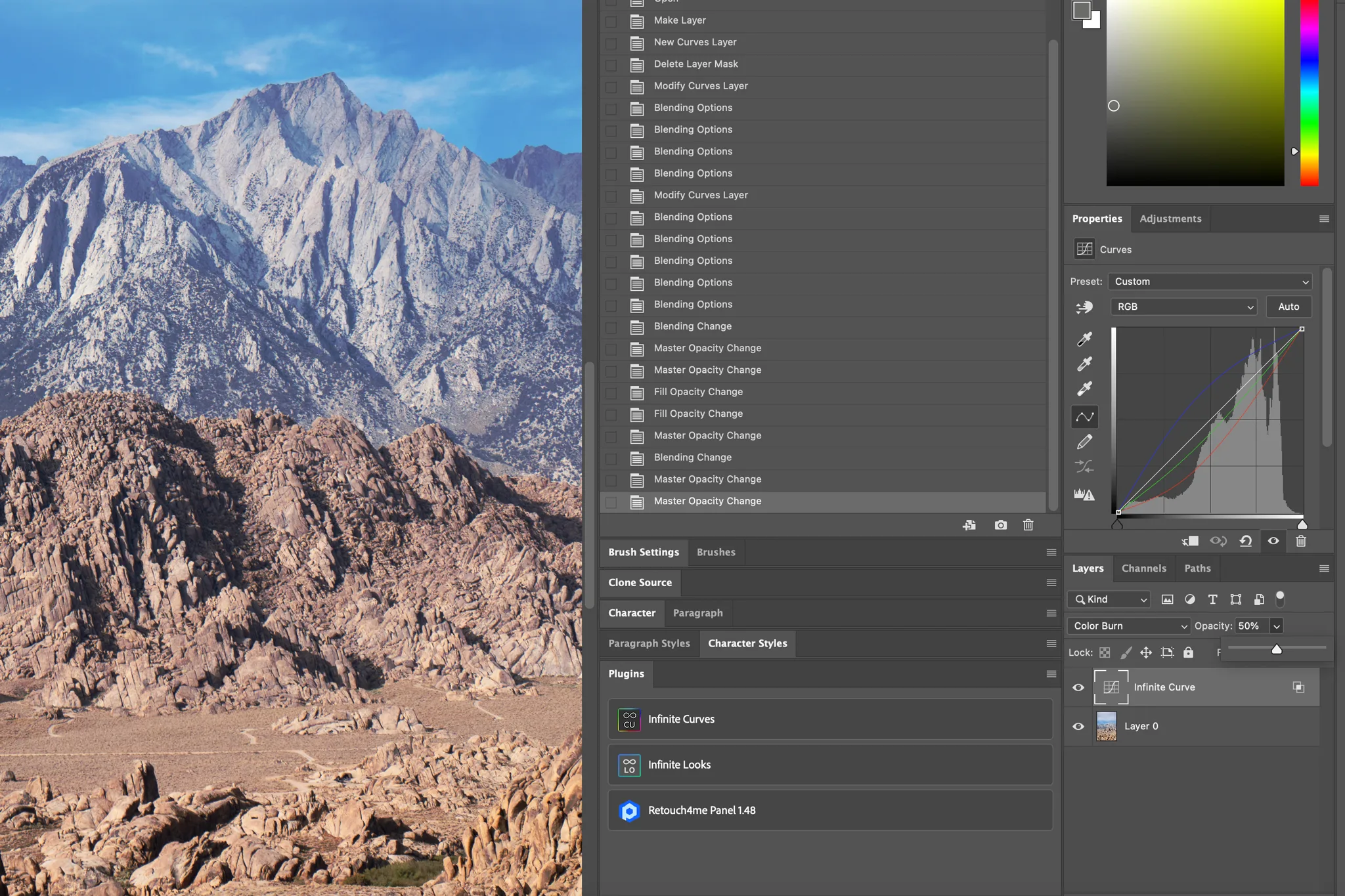
For us, the biggest advantage is the ability to think in color first, then refine how that color is applied. Infinite Curves also offers individual controls for each color point, including opacity and blending, along with luminosity presets. This gives us greater control over the final look while keeping the editing process flexible and non-destructive.
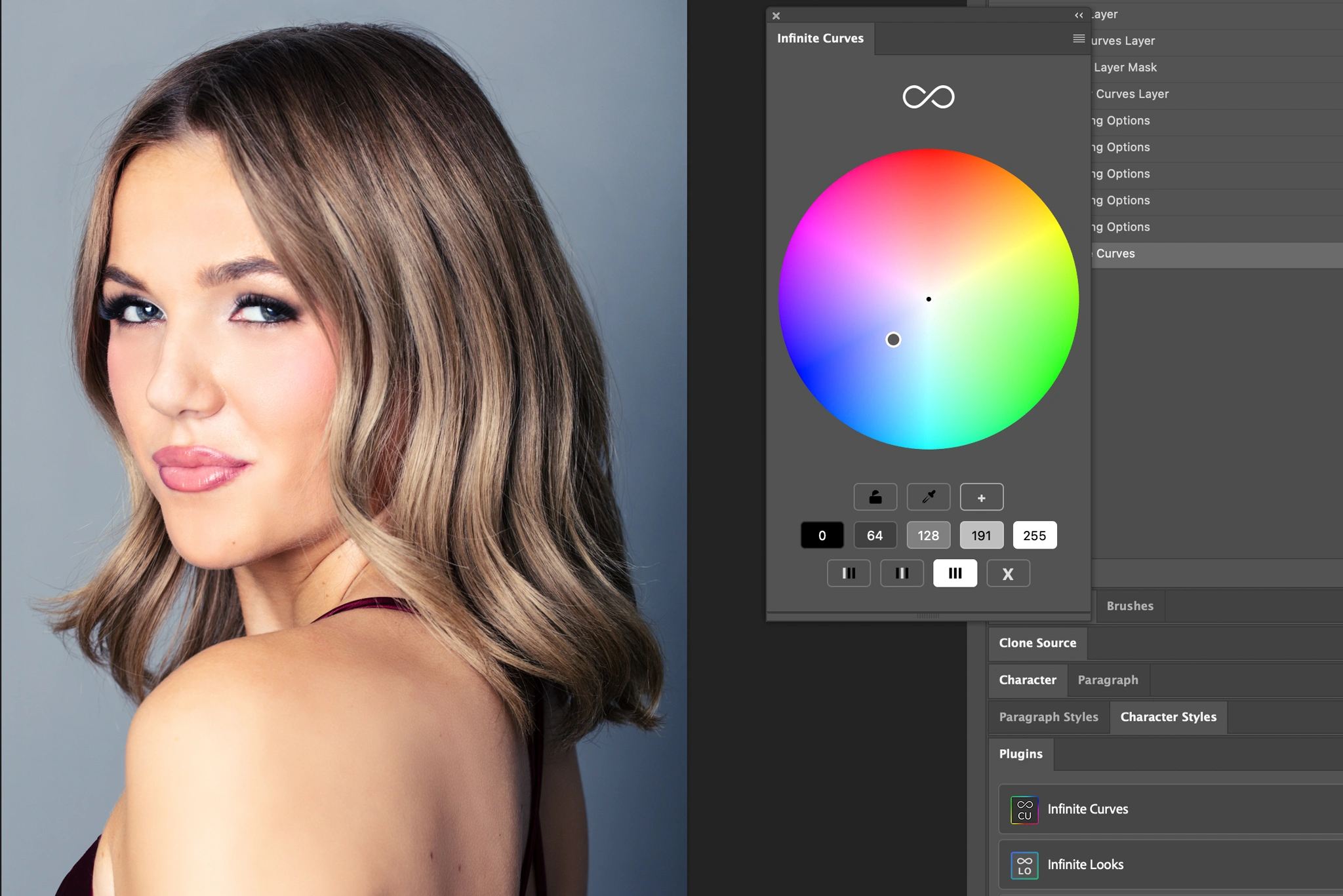
Infinite Curves offers both RGB and RYB color wheel interfaces:
- RGB: It follows the additive red, green, and blue color model used by digital imaging and display systems. It makes sense for photographers accustomed to working with RGB channels in Photoshop.
- RYB: It’s built around red, yellow, and blue and offers a more traditional, artist-oriented view of color relationships. Some photographers may find this arrangement more intuitive when planning warm and cool combinations.
Neither interface is automatically better. For our portrait work, we typically start with RGB because it aligns more closely with the color adjustments we’re already familiar with in Photoshop. RYB becomes particularly interesting when we want to explore color relationships from a more artistic perspective.
Is Infinite Tools Color Wheel Better Than Photoshop Curves?
This comparison isn’t about questioning Photoshop’s capabilities. Photoshop and its native curves adjustment remain among the most powerful tools for photo editing. The real question is how photographers interact with those controls.
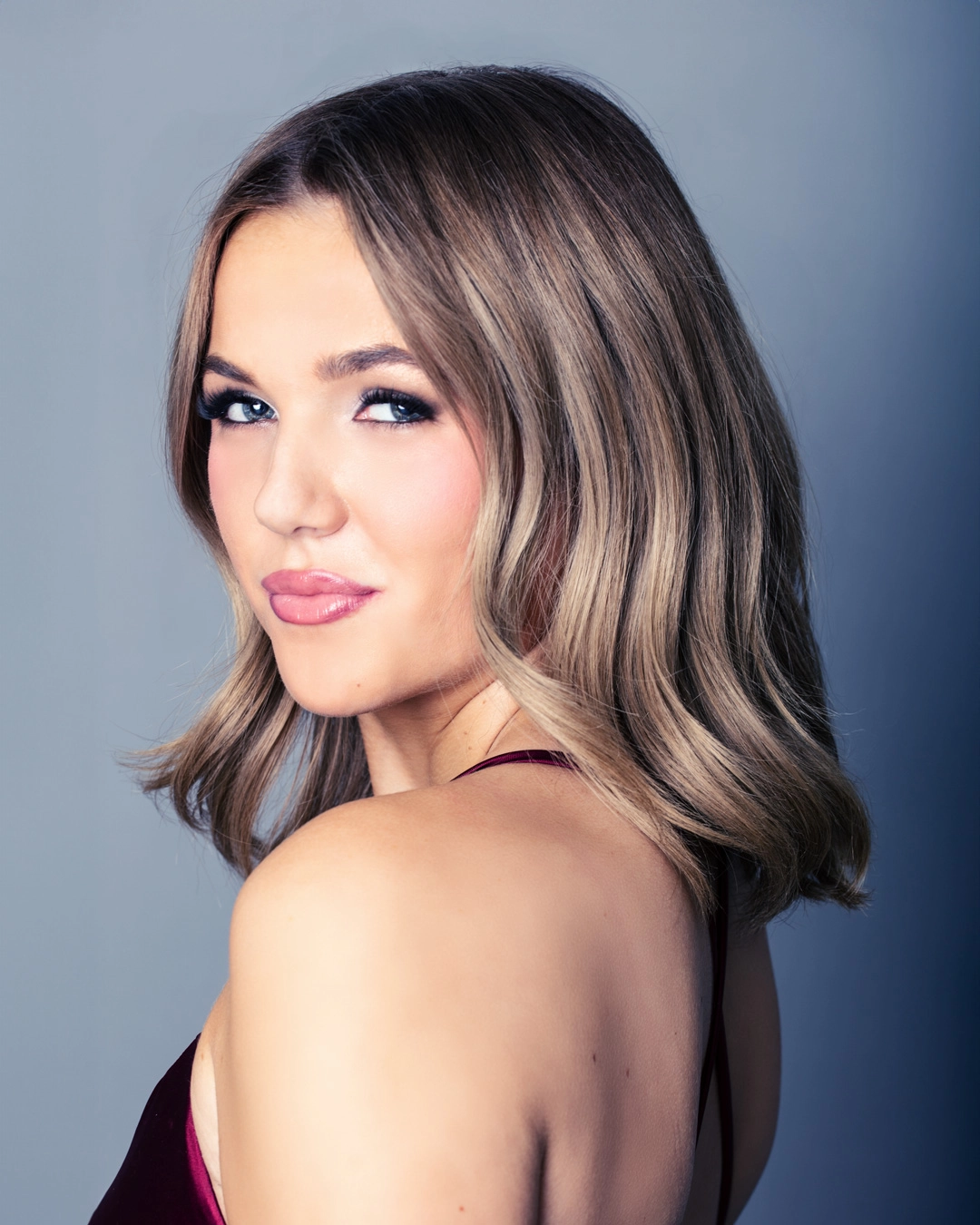
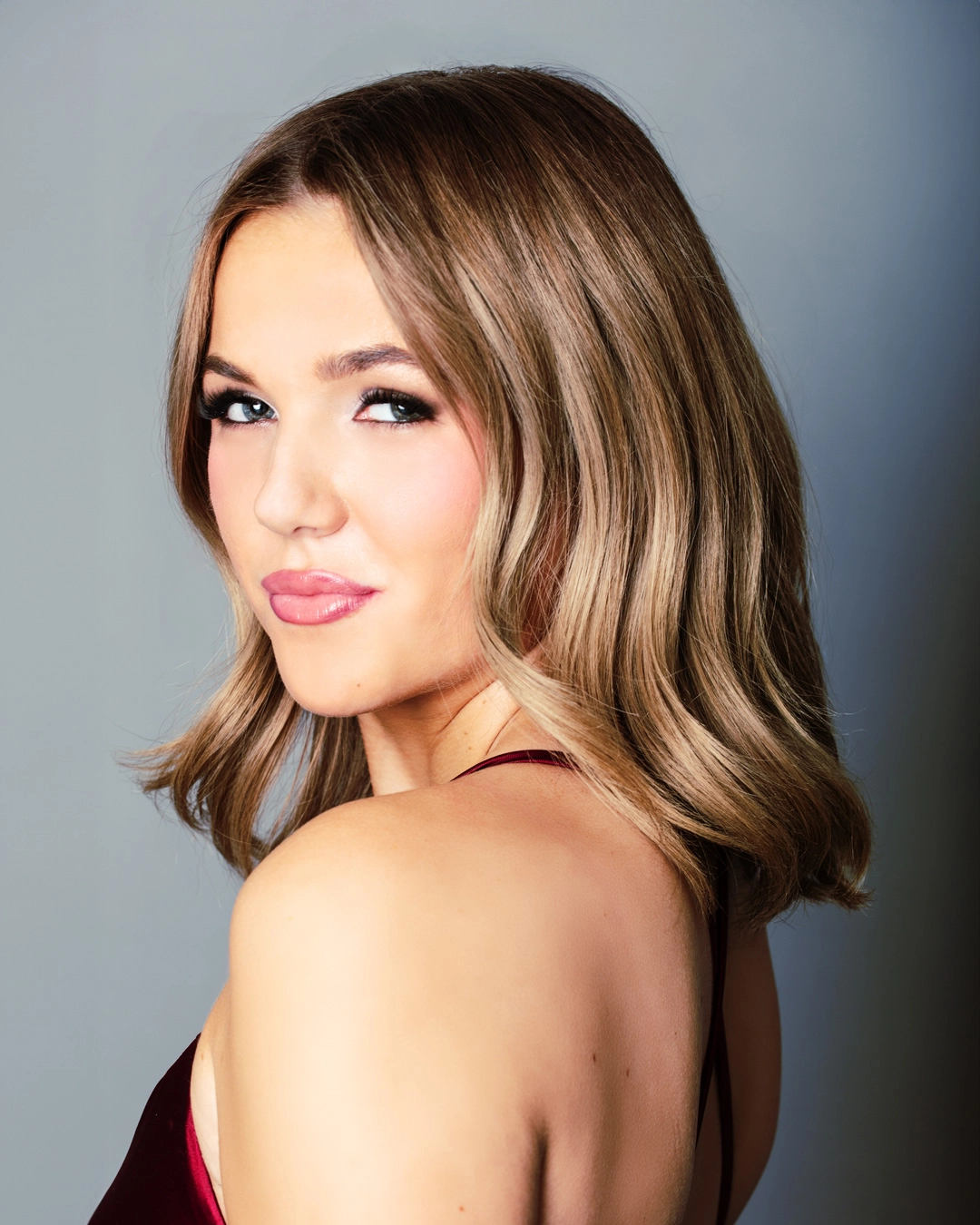
After testing Infinite Curves, one thing became clear: it makes color grading feel more intuitive. That doesn’t automatically mean more precise results, although we were genuinely pleased with what we achieved. We also found the integrated luminosity presets incredibly useful, adding another level of flexibility to the editing process.
Of course, Photoshop already includes Adobe Camera Raw, which provides color grading wheels for shadows, midtones, and highlights. Lightroom offers similar controls. Technically, you can achieve many of the same adjustments without Infinite Curves. The real difference is the workflow. Infinite Curves takes color wheel adjustments a step further by turning them into separate, editable Photoshop layers with integrated tonal blending options. In our testing, we found this approach more efficient, giving us greater control over individual adjustments and more freedom to experiment creatively.
If you already work in Photoshop and want a more intuitive, layer-based approach to color grading, Infinite Curves is worth considering. We’d consider it for the control, flexibility, and creative accessibility it brings.
Bonus for readers: Want to try Infinite Curves? Visit Infinite Tools and use our exclusive promo code CWSAL15 to save 15% on your purchase.
How to Use Infinite Curves for Portrait Color Grading
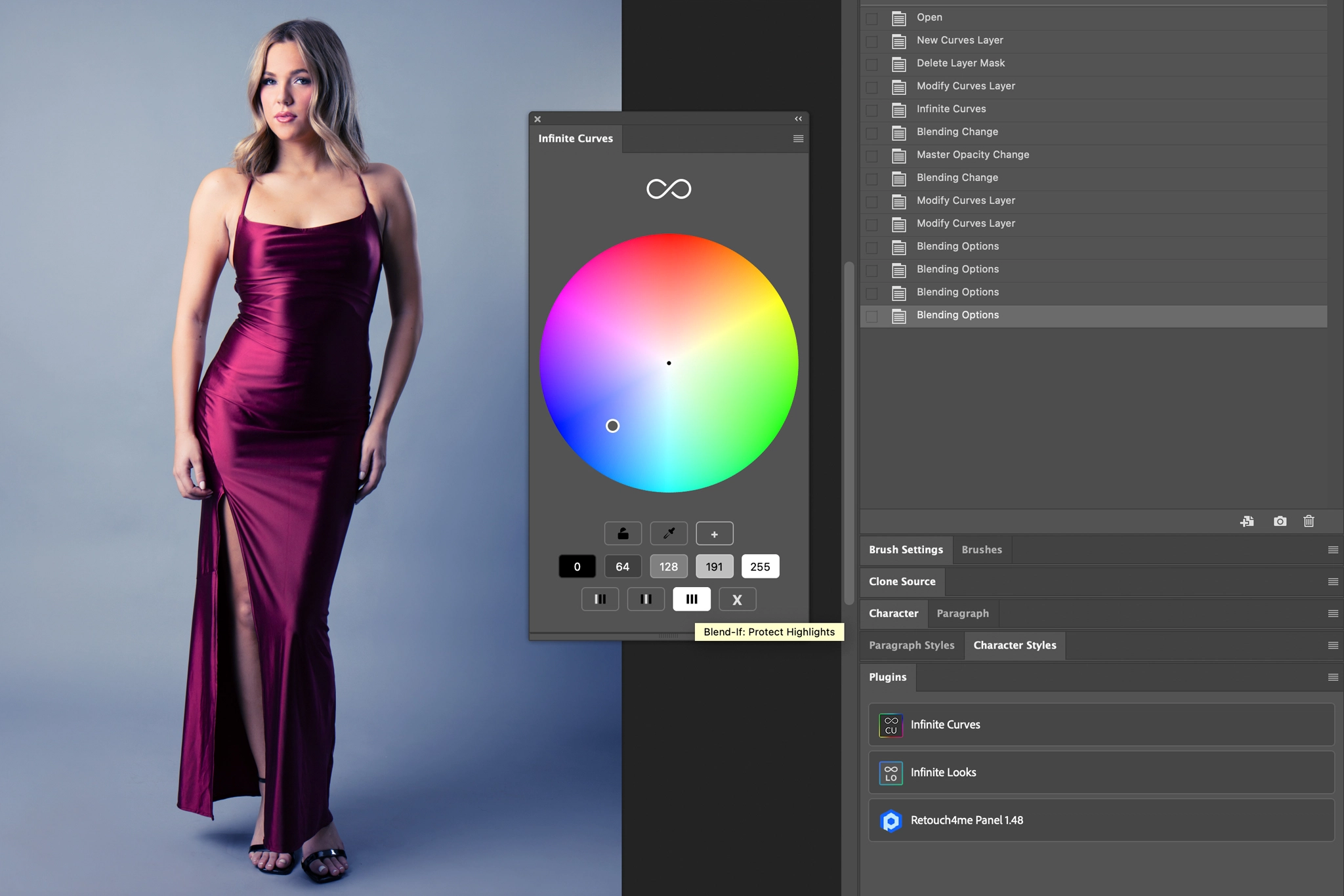
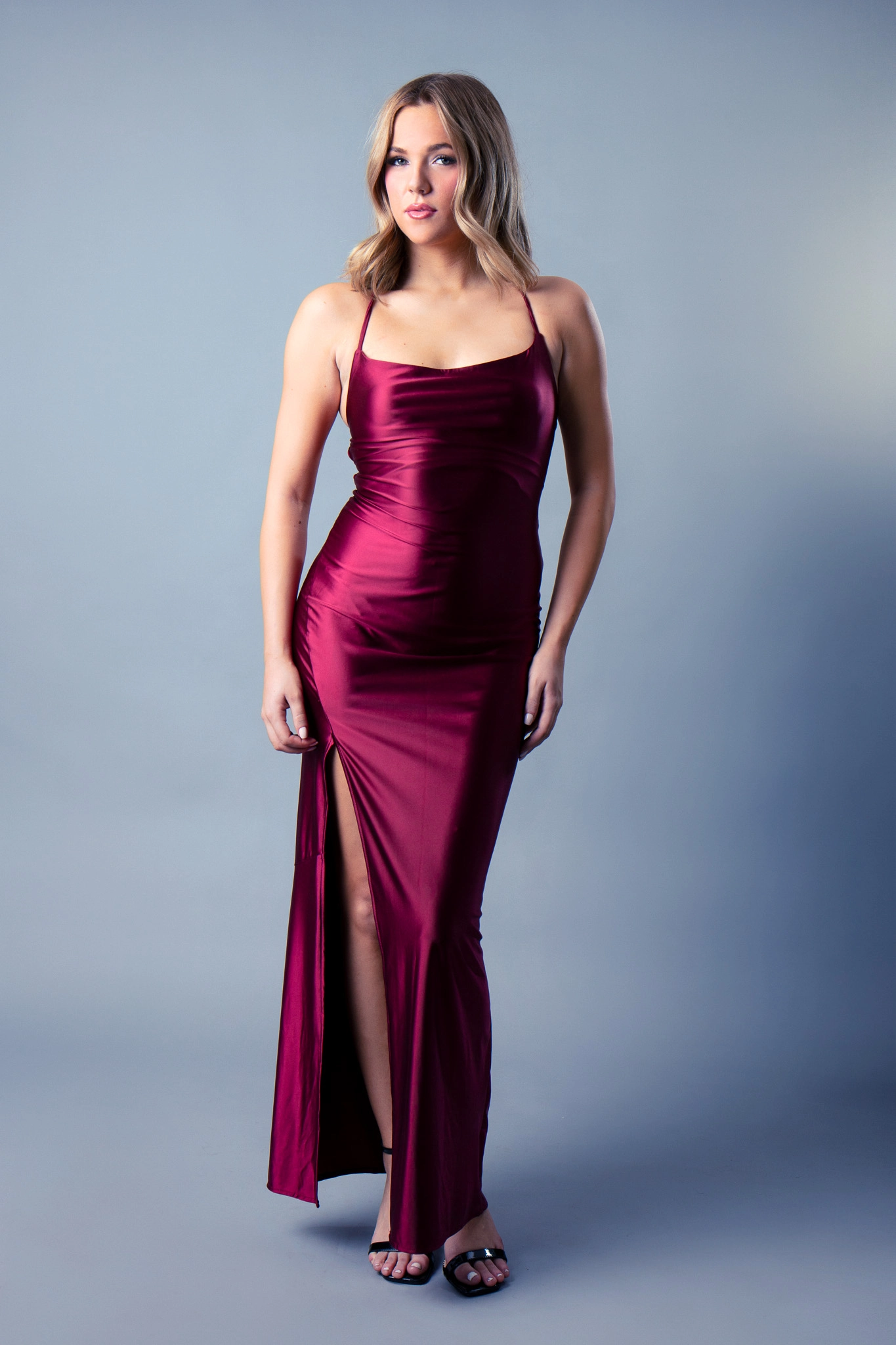
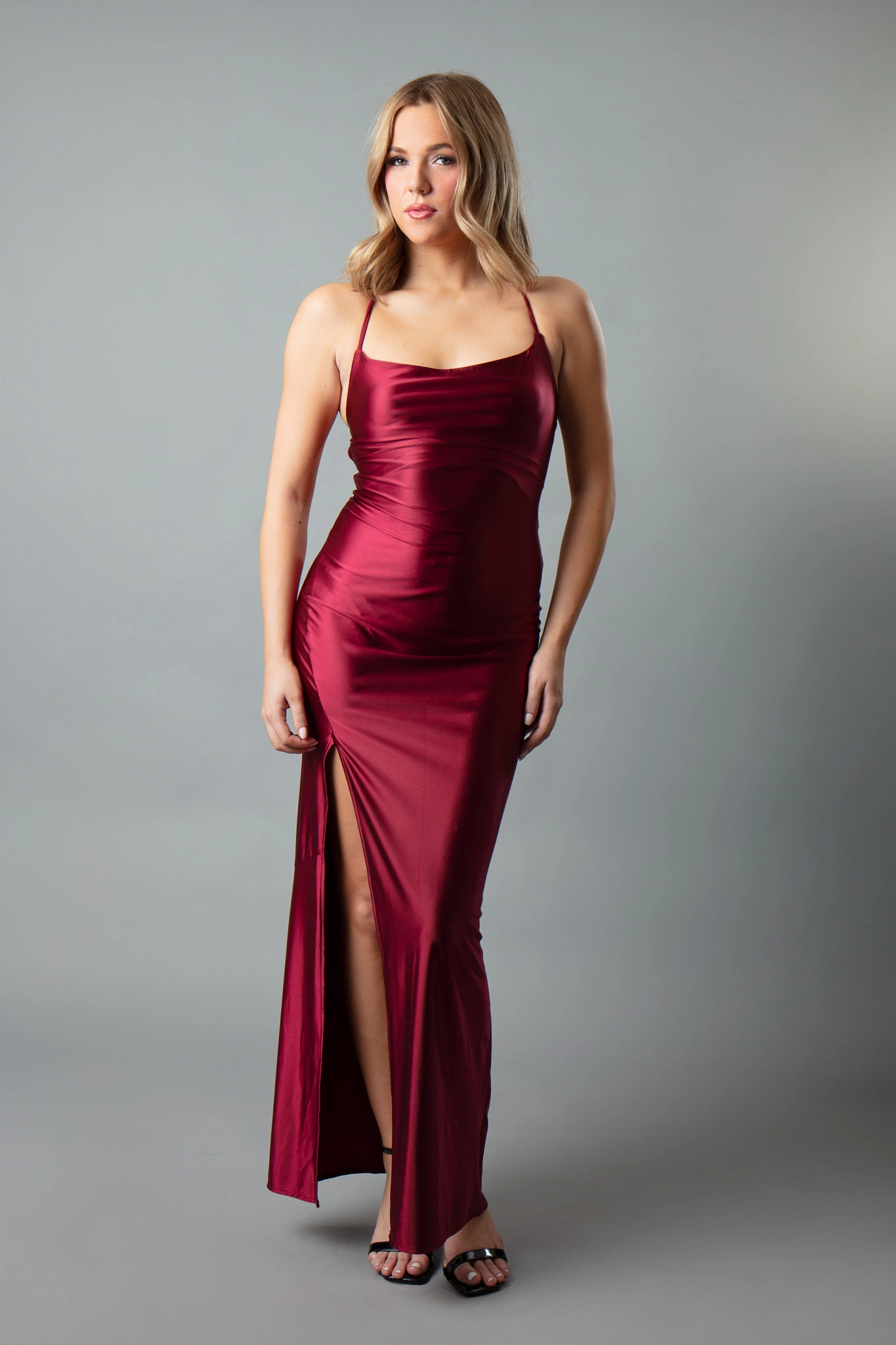
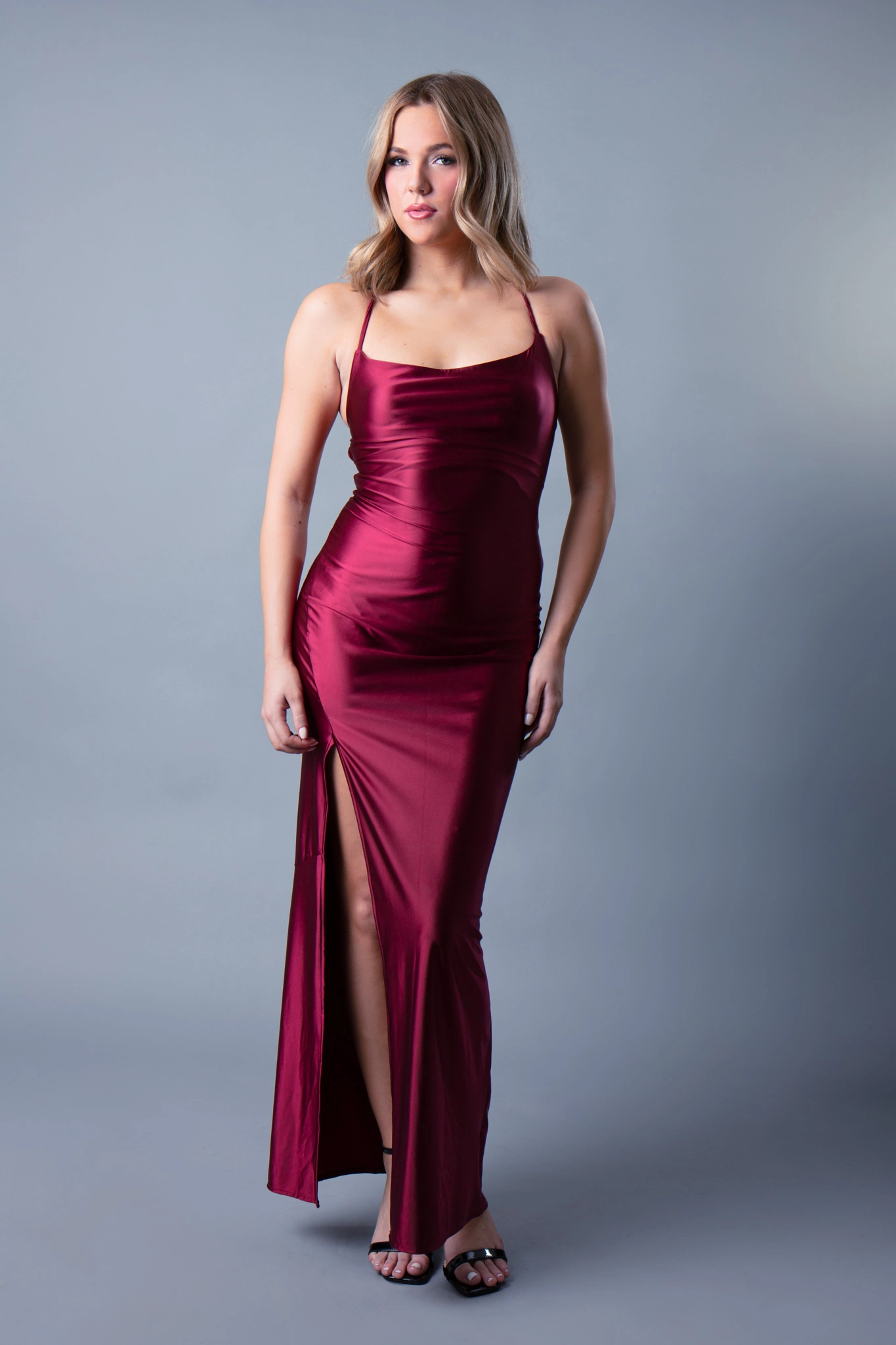
For this example, we’re working with a studio portrait featuring a model in a burgundy dress against a neutral gray backdrop. The gray background is particularly useful for color grading because it makes unwanted color shifts immediately visible, especially when pushing tones into the shadows. Our creative goal with the Infinite Curves color wheel plugin for Photoshop is to introduce a cooler, cinematic atmosphere while keeping the burgundy dress visually dominant and the model’s skin tones natural. Here’s how to achieve a similar result using our editing approach:
- Establish a balanced starting image: Open your photograph in Photoshop’s Camera Raw and begin with basic corrections to exposure, white balance, contrast, and highlights. Aim for a clean, balanced starting point without introducing a creative color grade. Pay particular attention to the gray backdrop, which should remain relatively neutral before applying the plugin.
- Introduce a controlled cool color grade: Launch Infinite Curves in Photoshop and select the RGB color wheel. Start experimenting with subtle blue and cyan tones, focusing on how they affect the relationship between the model, her dress, and the background. The objective is to introduce enough cool color while preserving the richness of the burgundy dress.
- Target the highlights while protecting skin tones: Once you’ve established a color direction, use luminosity presets in the Infinite Curves panel to see how the cooler tones interact with the model’s face, dress, and background. The highlights and brighter areas of the skin should remain comparatively neutral. This is where restraint makes the difference between a deliberate cinematic grade and an artificial color cast.
- Refine the color grade: Infinite Curves generates non-destructive Photoshop adjustment layers. Experiment with opacity and blending modes to control the final intensity. Finally, toggle the adjustments on and off to compare the result with the original. The finished image should feel more atmospheric and intentional without sacrificing believable skin tones or the visual impact of the burgundy dress.
How to Add a Color Wheel Plugin in Photoshop
To install Infinite Curves in Photoshop, download the plugin from your Infinite Tools account, install its .ccx package using Adobe Creative Cloud, and open the panel through Photoshop’s Plugins menu. The installation process is straightforward, and in our experience, the plugin runs smoothly in Photoshop.
Infinite Tools lists compatibility with Windows and macOS. If Photoshop reports that no compatible application is installed, check the Photoshop version and make sure the standard release is installed, not just the beta.
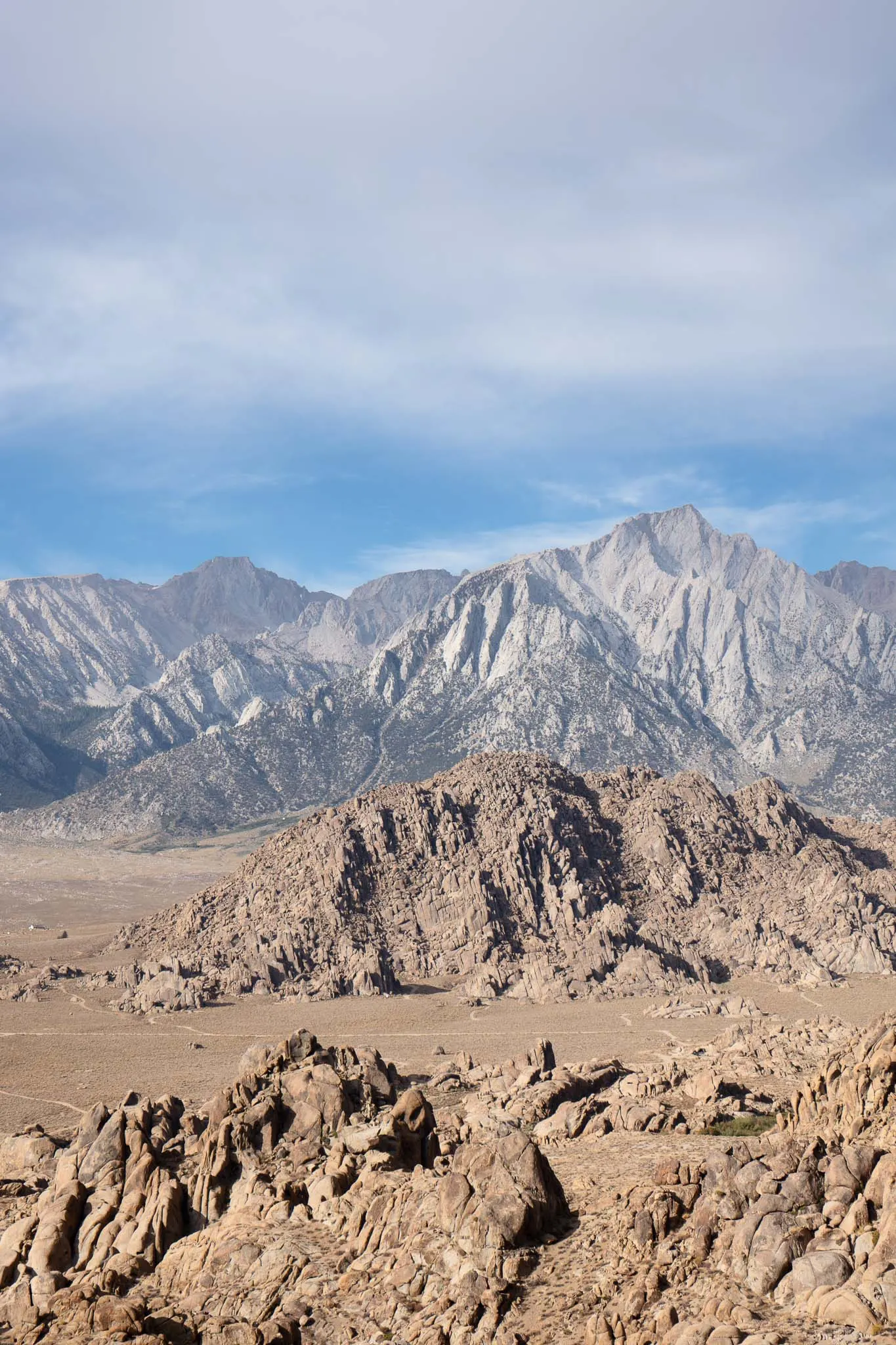
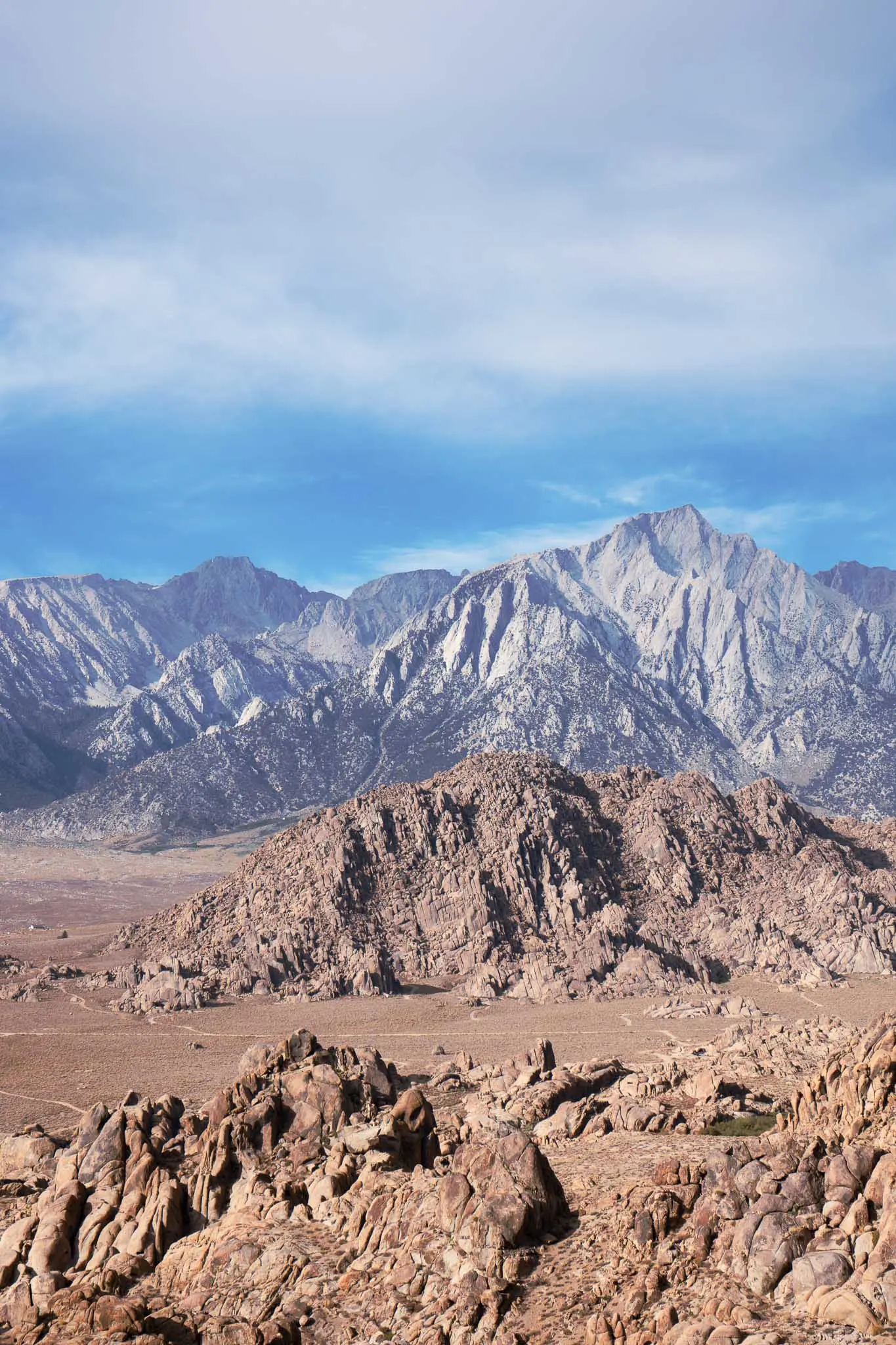
We think Infinite Curves is definitely worth considering for photographers who regularly color grade in Photoshop and prefer precise, intuitive color control over relying on presets. And it’s not just for portrait photographers. We found it equally effective for travel and landscape photography, where subtle adjustments to individual colors can make a real difference without compromising the overall atmosphere of an image.
Another strong selling point is the price. Infinite Curves comes with a one-time payment, making it an appealing addition to your Photoshop workflow. You can also use our exclusive Infinite Tools promo code CWSAL15 to save 15%, even on products that are already on sale.
Consider Infinite Curves if:
- You already use Photoshop for color grading
- You prefer a wheel-based interface over manual color channel adjustments
- You want built-in luminosity controls while retaining Photoshop’s non-destructive editing flexibility
- You frequently combine creative color treatments with masks and tonal targeting
You probably don’t need it if:
- You’re already comfortable creating the same grades using native Photoshop adjustments
- You rarely use Photoshop for color grading
- Your priority is ready-made looks rather than controlling individual color decisions
- You expect one-click or automatic editing
The best purchase decision comes from whether its controls solve a problem you repeatedly encounter.
Infinite Curves Plugin FAQs
No. Infinite Curves doesn’t currently offer a free trial. However, Infinite Tools provides a 30-day money-back option if you’re not satisfied with your purchase, subject to its refund terms.
Yes. Infinite Curves requires an internet connection for the initial sign-in, but you can continue using the plugin offline for up to 10 days after signing in.
Yes. An Infinite Curves personal license covers up to three computers, making it suitable for photographers working across multiple devices.
Key Takeaways
- Infinite Curves uses interactive RGB and RYB color wheels to simplify creative adjustments without manually building individual Photoshop curves
- Individual adjustment controls let you fine-tune the strength of each color adjustment and where it affects the image
- Photographers comfortable with traditional curves or Camera Raw may not need another plugin. Infinite Curves is primarily about improving the creative workflow
- Infinite Curves doesn’t require a recurring subscription. You can save 15% even during ongoing sales with promo code CWSAL15
Affiliate Disclosure: Some links or promo codes in this article may earn us a commission if you buy through them, at no extra cost to you. That does not change our opinion. We recommend tools based on whether they actually fit the workflow.












Leave a Reply