
Lightroom photo to video is now part of the modern photographer’s AI workflow. A finished image can become b-roll, a reel opener, a portfolio teaser, or a subtle motion asset for your website without turning the whole project into a video production. But the real question is whether the photo is actually a good candidate for motion. In this article, we’ll look at how Lightroom photo to video works, but with a focus on the creative decision behind it.
If you use Lightroom photo to video, Firefly, Dzine, Veo, or any generative AI tool, you need clear language around what was edited, generated, or altered. Download the free AI disclaimer templates for client work, captions, and creative projects.
What is Lightroom Photo to Video?

Lightroom photo to video lets photographers create an AI-generated video clip from a still image. Lightroom now uses generative AI to create motion based on the original photo and your prompt direction. The feature can be useful for short-form content, mood clips, and social posts. From experience, it works best when the image already suggests movement, such as water, clouds, fabric, dust, reflections, or cinematic camera motion.
How Lightroom Photo to Video Works
The basics are simple:
- Start with a finished photo
- Use the Lightroom photo to video feature
- Choose the available AI video model
- Add a prompt that describes the motion
- Generate a short clip and export it
Here is the photo to video workflow we suggest:
- Decide whether the image is a strong candidate for motion
- Generate one subtle version first
- Generate one slightly more cinematic version
- Reject anything that changes the subject, product, or mood
- Export only if the motion makes the still more useful
So, should photographers use Lightroom generative video? Yes, but always with restraint and clear intent. Use it for:
- Short reels
- Website hero motion
- Product content
- Support visuals
Skip it for:
- Documentary
- Client work where identity must stay untouched
- Scenes that should have been filmed
- Weak photos trying to look more interesting through motion
The tool is useful. The judgment matters more.
When Lightroom Photo to Video Actually Works
Lightroom photo to video works best when the motion is already implied in the photograph. The strongest images have elements that feel ready to move, so the goal is to reveal the motion the image already suggests.
Copy this into your video AI model

Create a subtle cinematic coast animation. Preserve the original crop, beach, cliffs, ocean, shoreline, horizon, and muted color. Animate gentle waves, rolling surf, drifting mist, and slow cloud movement. Slow controlled push-in, no new objects, no people, no boats, no storm, no cliff or shoreline distortion.
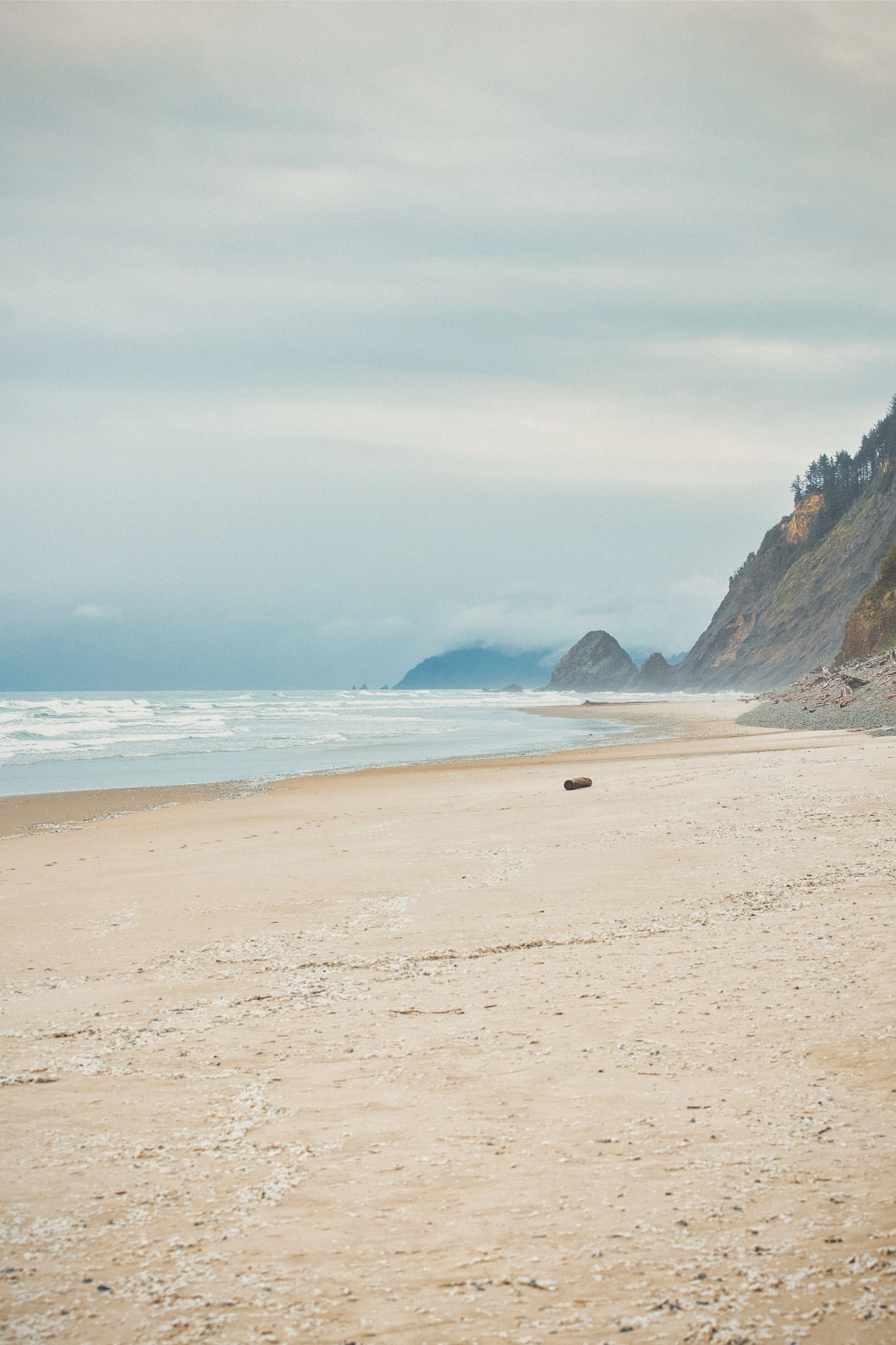
Strong photo to video element candidates:
- Water
- Clouds
- Smoke
- Dust
- Fabric
- Hair
- Reflections
- Headlights
- Shadows
- Street lights
- Atmospheric haze
Lightroom Photo to Video Prompts for Photographers
The prompt should protect the photograph first and animate second. These words may sound boring, but they are some of the most important and effective terms you can include in a Lightroom photo to video prompt:
- Subtle
- Preserve
- Natural
- Realistic
- Controlled
- Minimal
- Clean
- No distortion
- No extra objects
- No face or body changes
Copy this into your video AI model

Create a subtle cinematic tunnel animation. Preserve the original crop, vintage car, tunnel arch, wet road, lane lines, headlights, reflections, and dark film look. Animate light rain, soft headlight glow, and wet-road shimmer. Slow controlled push-in, no new objects, no car distortion, no warped road lines.
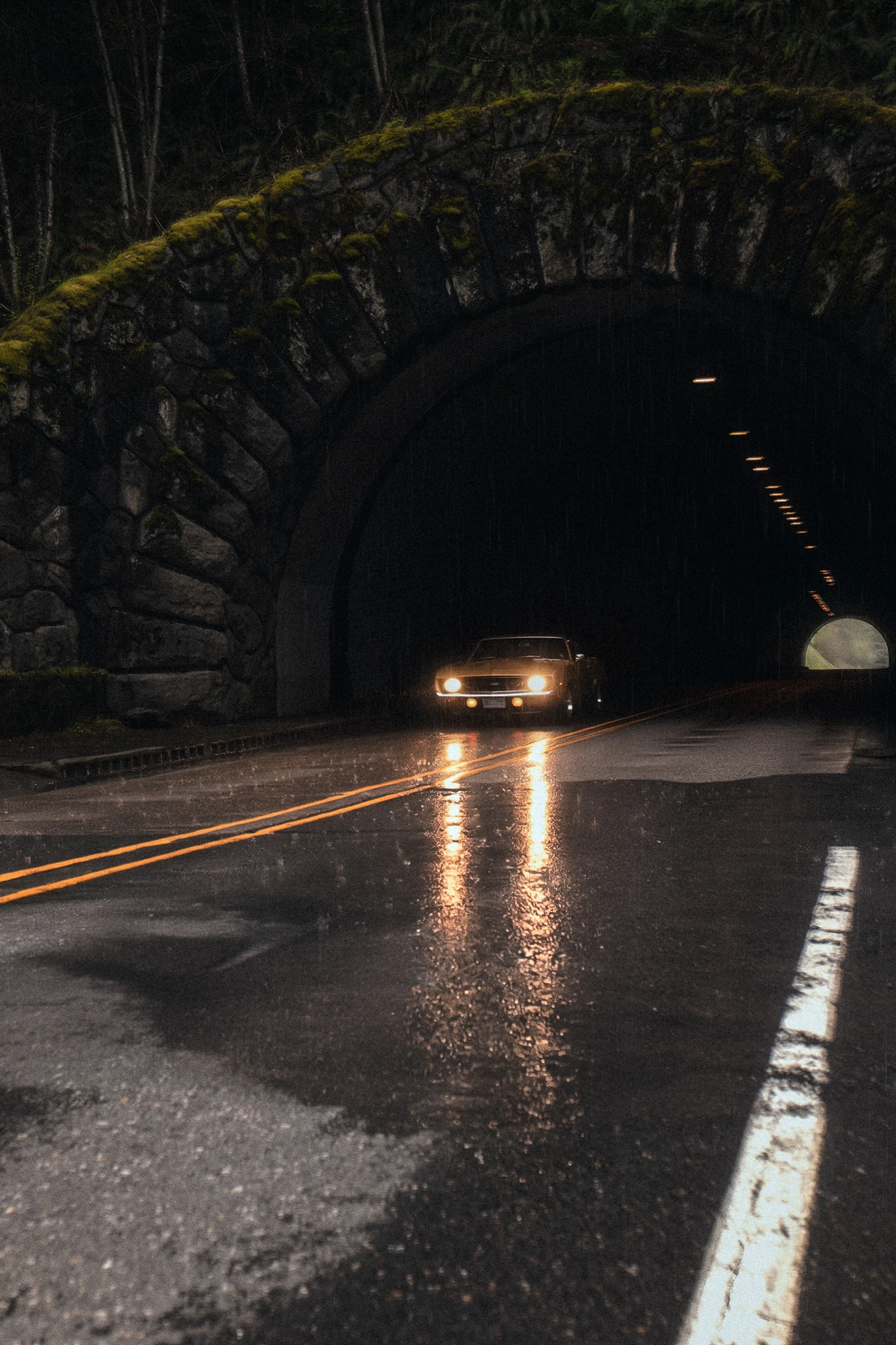
Copy this into your video AI model

Create a subtle cinematic mountain animation. Preserve the original crop, mountains, valley, foreground, horizon, and color grade. Animate slow storm clouds, drifting mist, and soft shifting light across the landscape. Slow controlled push-in, no lightning, no rain, no new objects, no mountain or foreground distortion.
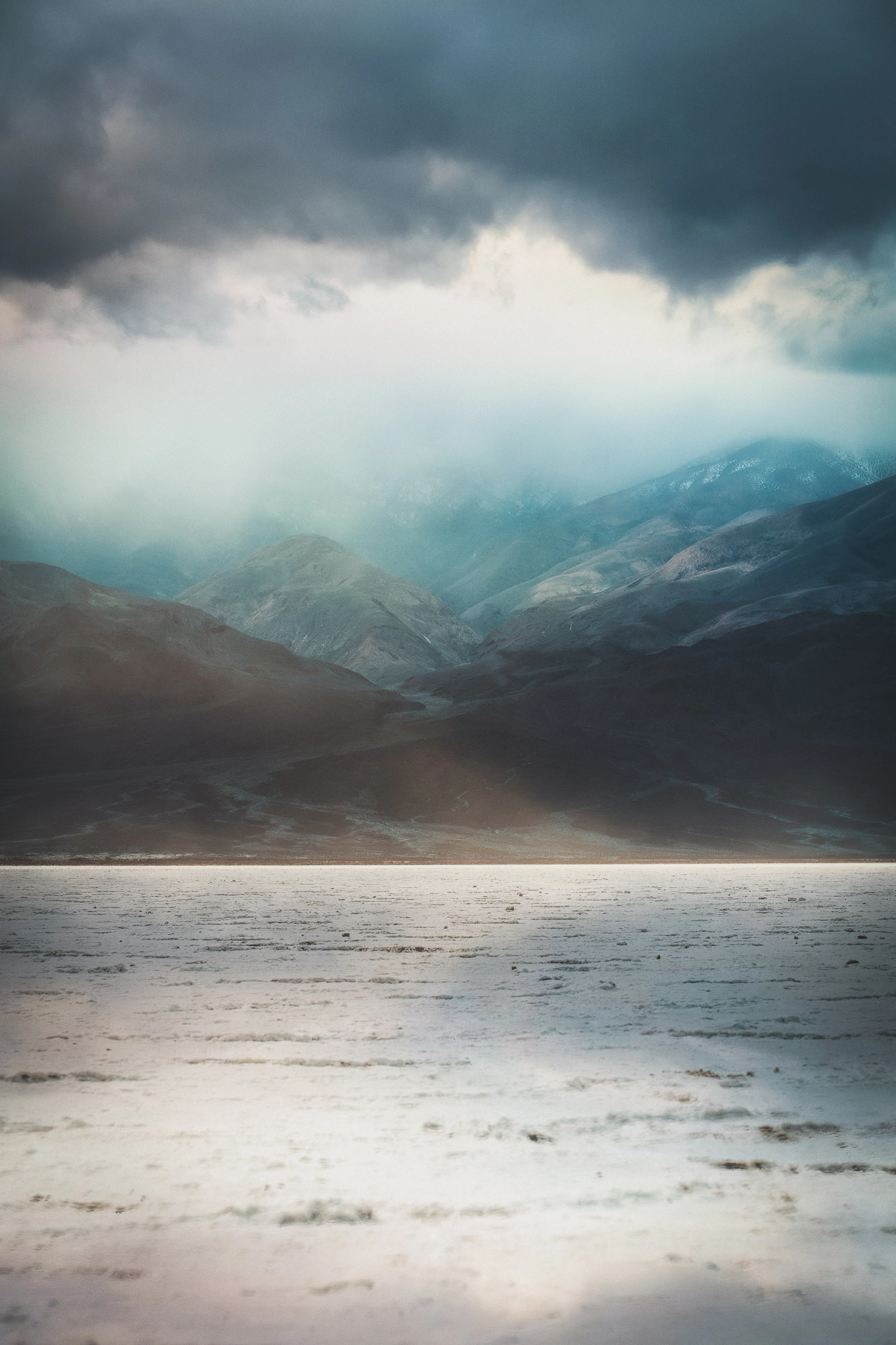
Lightroom’s photo-to-video AI feature uses credits. If every generation costs something, you need to choose stronger stills before you generate. Do not throw weak images into AI video and hope they become useful. That is how you waste credits and make bad content faster.
Bonus for readers: Try Dzine when you want a wider AI creative workspace outside Lightroom, especially if your workflow includes Google Veo, Nano Banana Pro, and video generation tests. We use Dzine in many of our hybrid photography projects because it gives us access to Nano Banana Pro, Google Veo, and other AI models in one workspace, with credit options that can make testing, edits, and motion ideas more affordable.
Lightroom Photo to Video FAQs
Yes. Lightroom photo to video lets photographers create a short AI-generated video clip from a still image. The result is based on the original photo and the prompt direction you provide.
Yes. Lightroom photo-to-video generation uses generative AI credits. Because each generation can cost credits, photographers should be selective and avoid testing weak images just to see what happens.
Photos with implied movement work best. Good candidates include water, clouds, smoke, dust, fabric, hair, reflections, headlights, shadows, street lights, and atmospheric haze.
Yes, when used with restraint. It can help photographers create short motion assets from finished images, but it should not replace real video or become a shortcut for weak photography.
Key Takeaways
- Lightroom photo to video can turn a still image into a short AI-generated motion clip
- The best candidates already suggest movement, such as water, clouds, dust, fabric, reflections, or light
- Subtle motion usually looks better than dramatic AI movement
- The prompt should protect the photo first and animate second
- Dzine is useful when you want broader photo to video AI testing outside Lightroom
Affiliate Disclosure: Some links or promo codes in this article may earn us a commission if you buy through them, at no extra cost to you. That does not change our opinion. We recommend tools based on whether they actually fit the workflow.













Leave a Reply