
The best panorama image size depends on how you intend to display the photograph. Common panoramic aspect ratios include 2:1 and 3:1, but there is no single required format. Wider or intermediate proportions can work just as well.
Here’s something worth knowing: You don’t necessarily need to stitch multiple photographs together to create a panoramic image suitable for large prints. If you shoot with a high-megapixel camera, you can crop a single photograph into a wider composition while retaining substantial detail, provided the file contains enough pixels for the intended print size.
Next, we’ll break down panoramic image dimensions and share our preferred aspect ratios for Gallery Canyons panoramic prints.
What Is the Best Panorama Image Size?
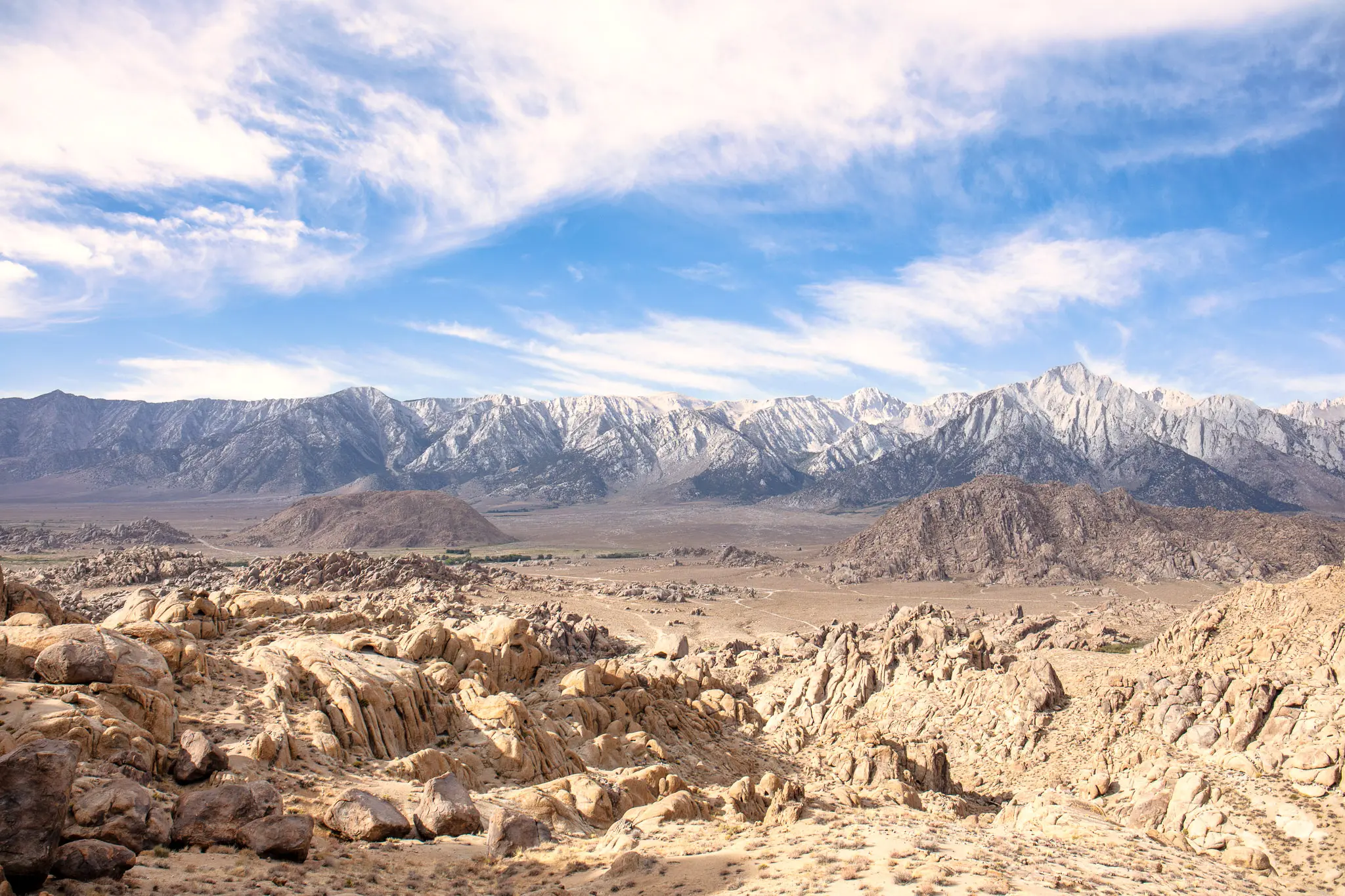
For most landscape photographs, a 2:1 or 3:1 panorama aspect ratio is a practical starting point. A 2:1 crop preserves more of the original scene, while 3:1 creates a noticeably wider composition. A 4:1 ratio is more specialized and works best when the subject genuinely benefits from an elongated format.
To understand how panorama image sizes work, let’s take a full-resolution photograph from the Canon EOS 5DS as an example, measuring 8688 × 5792 pixels in the standard 3:2 format. By keeping the original width and cropping only the height, we can see how the image dimensions and resolution change across different panoramic aspect ratios.
| Aspect Ratio | Dimensions | Resolution |
| 3:2 | 8688 x 5792 px | 50.3 MP |
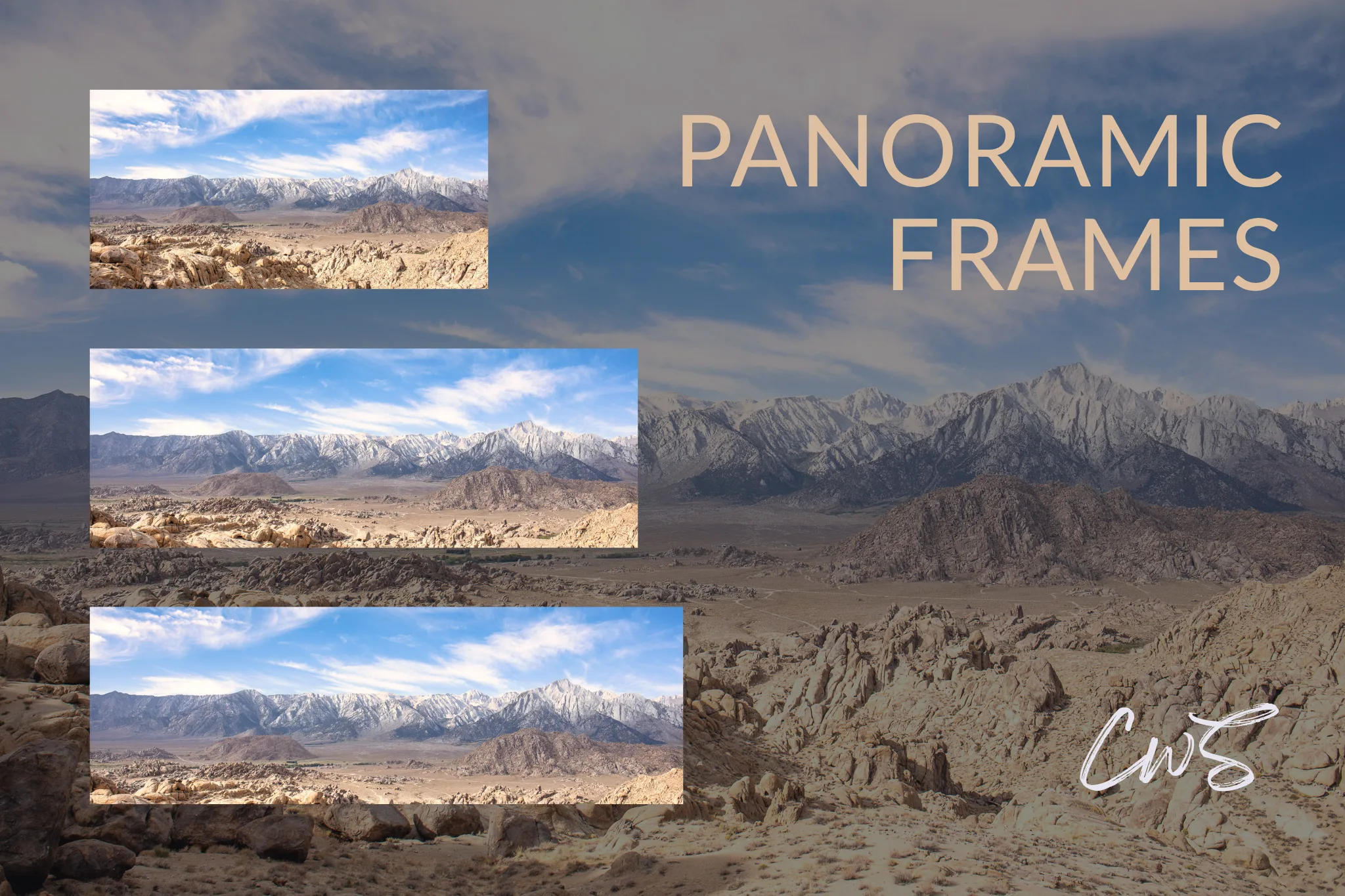
| 2:1 | 8688 x 4344 px | 37.7 MP |
| 2.75:1 | 8688 x 3159 px | 27.4 MP |
| 3:1 | 8688 x 2896 px | 25.2 MP |
Even after cropping to 3:1, we’re left with approximately 25.2 megapixels, enough to produce large panoramic prints with impressive detail. This is one of the advantages of starting with a high-resolution camera like the Canon EOS 5DS or the mirrorless Canon EOS R5.
Panorama Aspect Ratios Explained
A panorama aspect ratio describes the relationship between the width and height of an image. The ratio determines the shape of the composition and influences how the photograph feels, but it doesn’t determine its pixel dimensions or image quality.
2:1
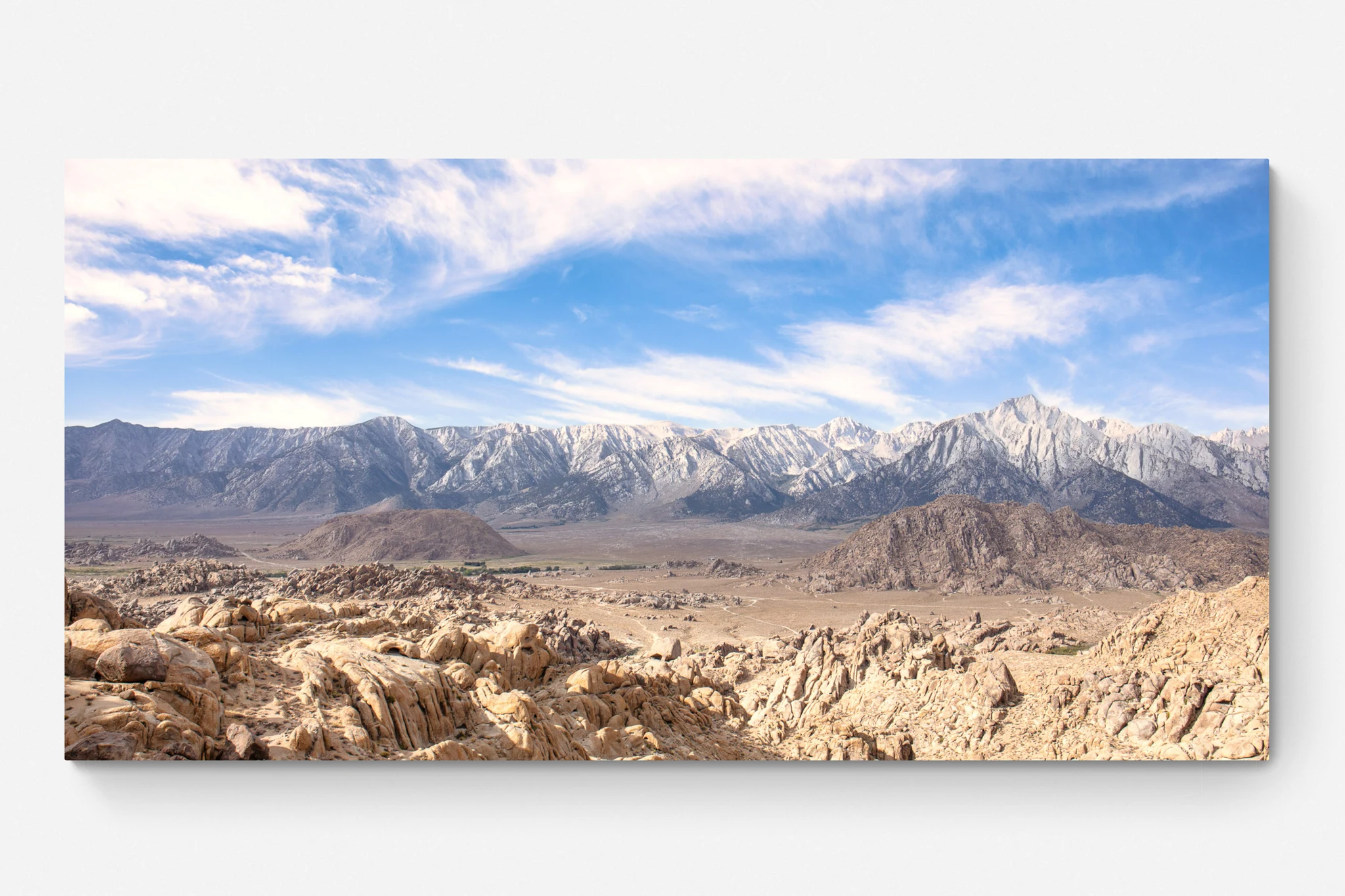
The 2:1 aspect ratio is a versatile panoramic format that preserves much of the original image resolution while creating a wider composition. If a photograph has a strong foreground, an interesting sky, or prominent vertical elements, this ratio can work particularly well without sacrificing too much of the scene. If you’re accustomed to viewing your photographs in a standard landscape orientation, 2:1 is an approachable starting point for exploring panoramic photography.
2.75:1
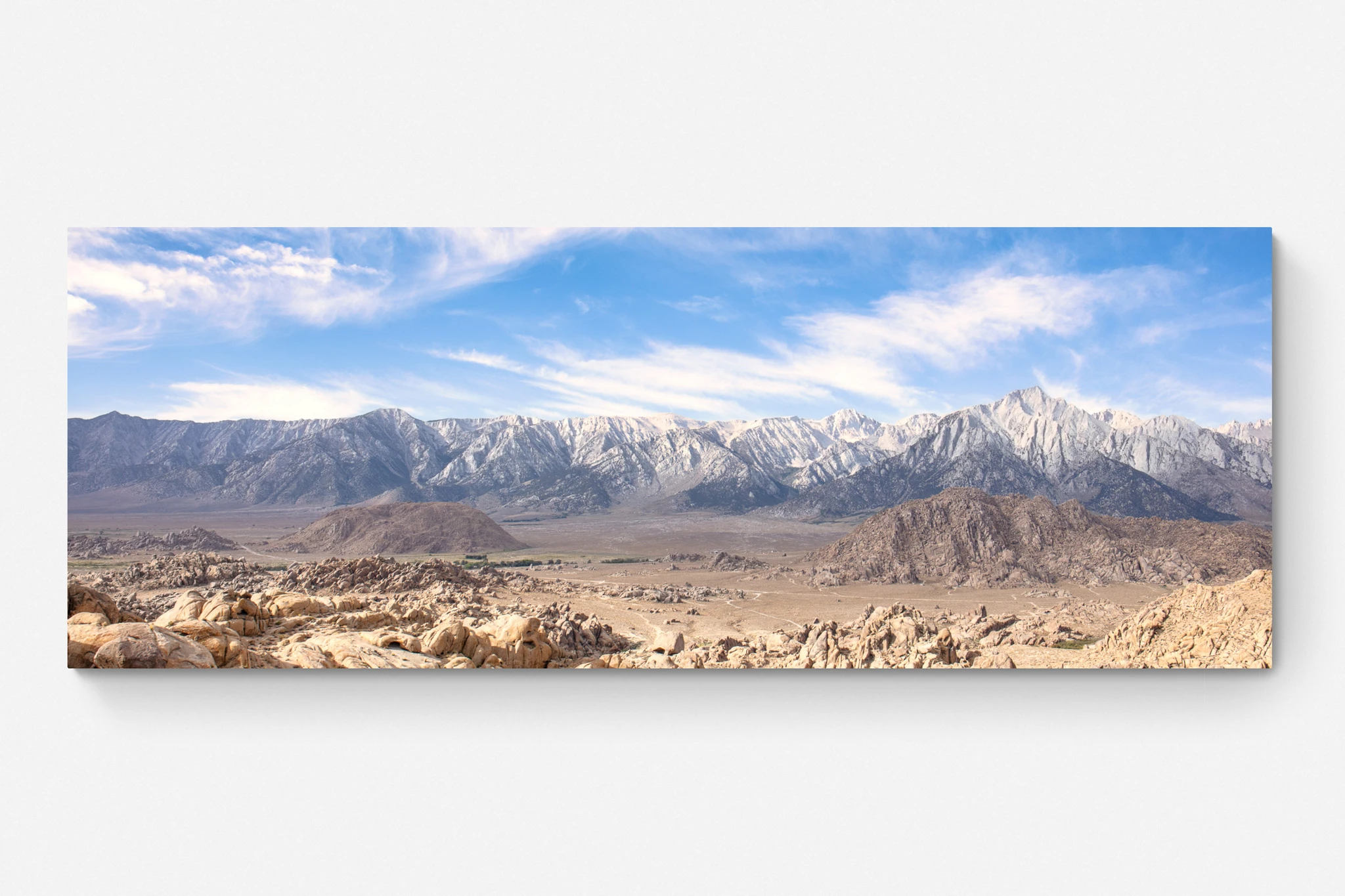
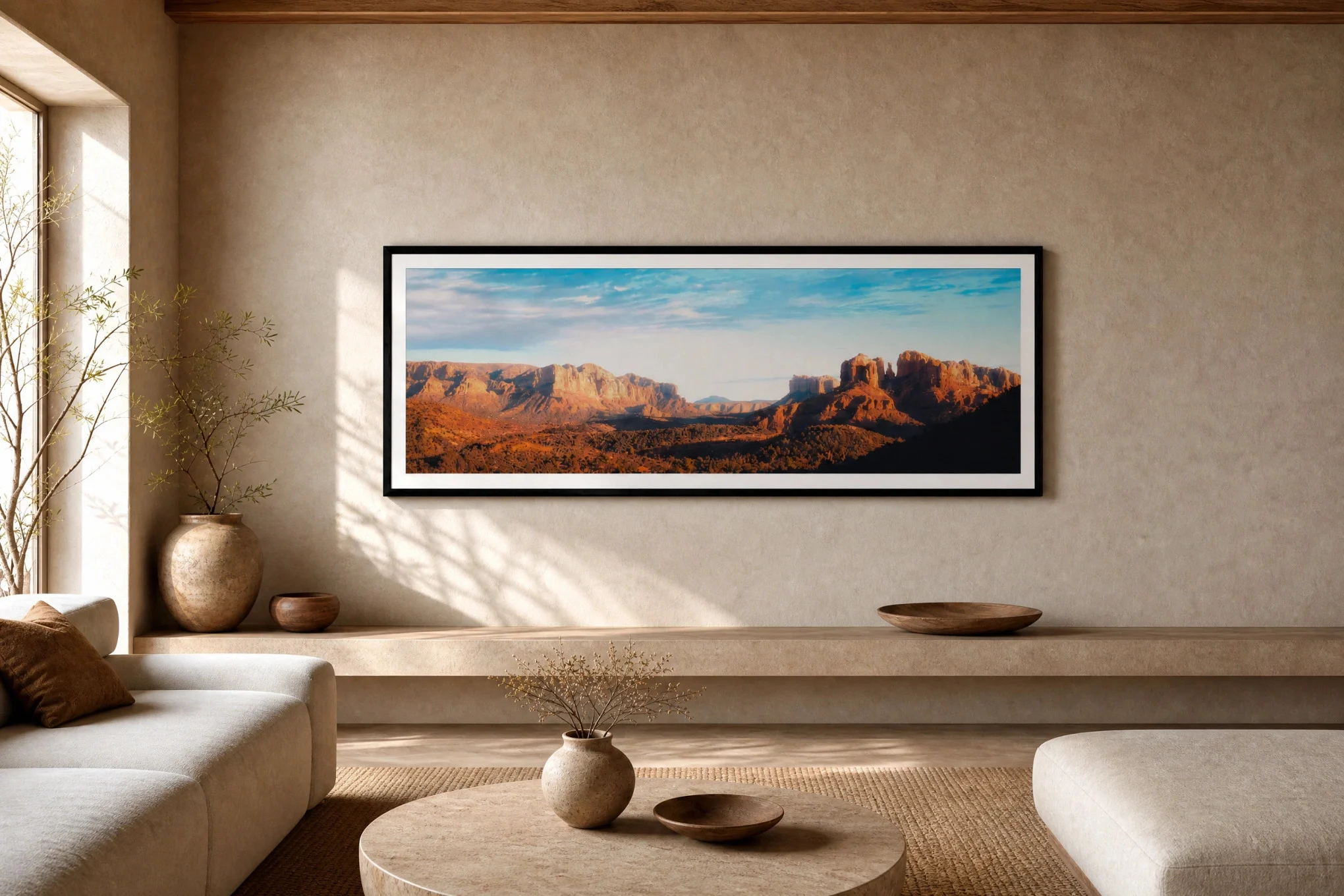
For panoramic prints, 2.75:1 is our preferred balance. After testing several photographs at aspect ratios ranging from 2:1 to 3:1, we found that 2.75:1 delivers a distinctive, cinematic look without pushing the composition too wide. This aspect ratio isn’t an industry standard. It’s an editorial preference. After all, a panoramic photograph is still a photograph, and every frame needs thoughtful composition and visual direction.
3:1
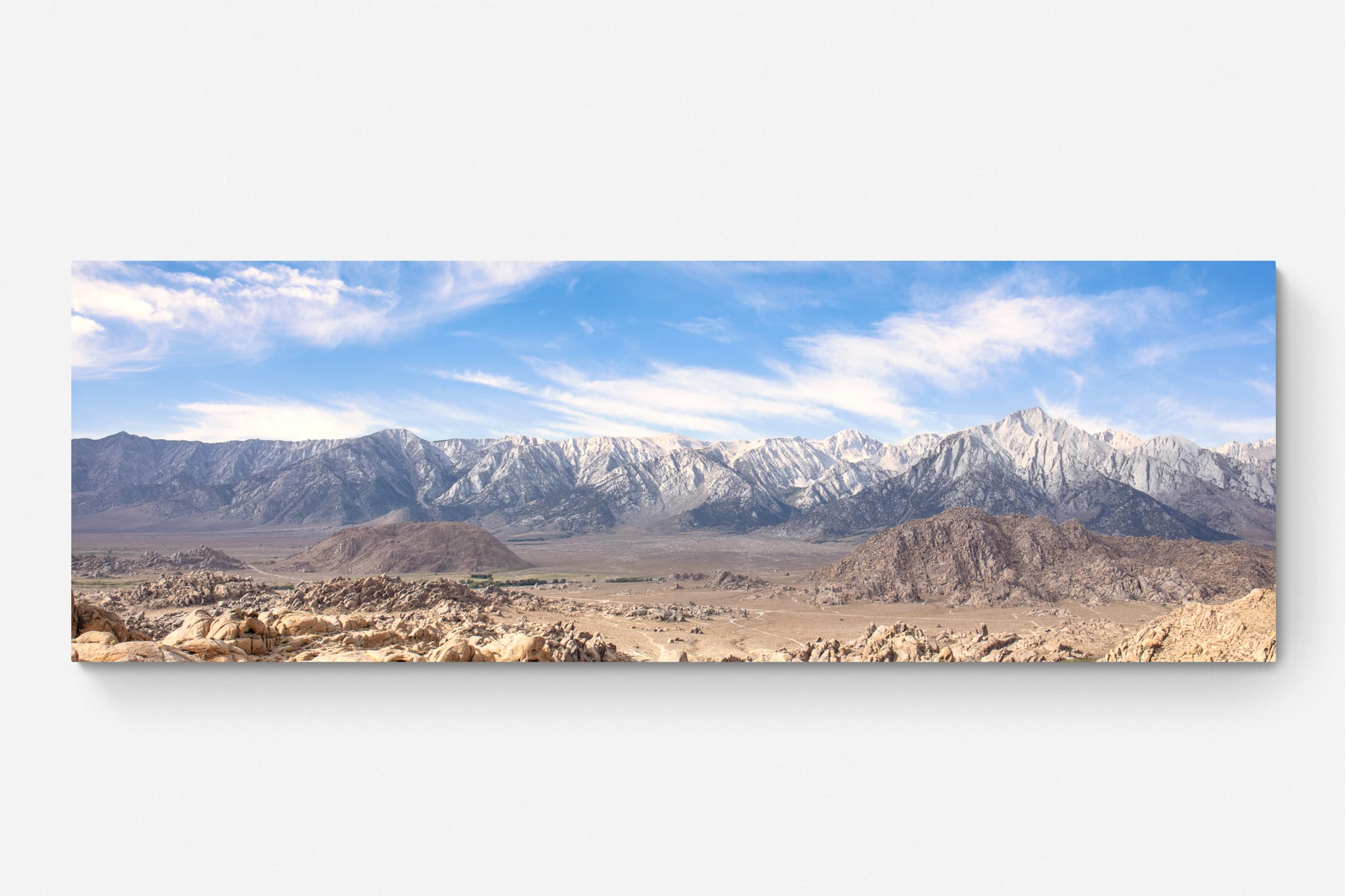
The 3:1 aspect ratio works best when a photograph is defined by its horizontal composition, making it particularly effective for mountain ranges, desert roads, and coastlines. The extra width can emphasize scale and isolation, but if the image relies on a dramatic sky or a detailed foreground, cropping to 3:1 may remove essential elements of the composition.
To find the strongest panoramic composition, use the horizon deliberately. Pay attention to how it moves through the scene, straighten any unintentional tilt, and consider how much space to give the sky and foreground. Just as importantly, recognize when a photograph doesn’t need to become a panorama. The goal is to recognize when a panoramic composition can reveal a stronger photograph.
How to Crop a Photo Into a Panorama in Lightroom Classic
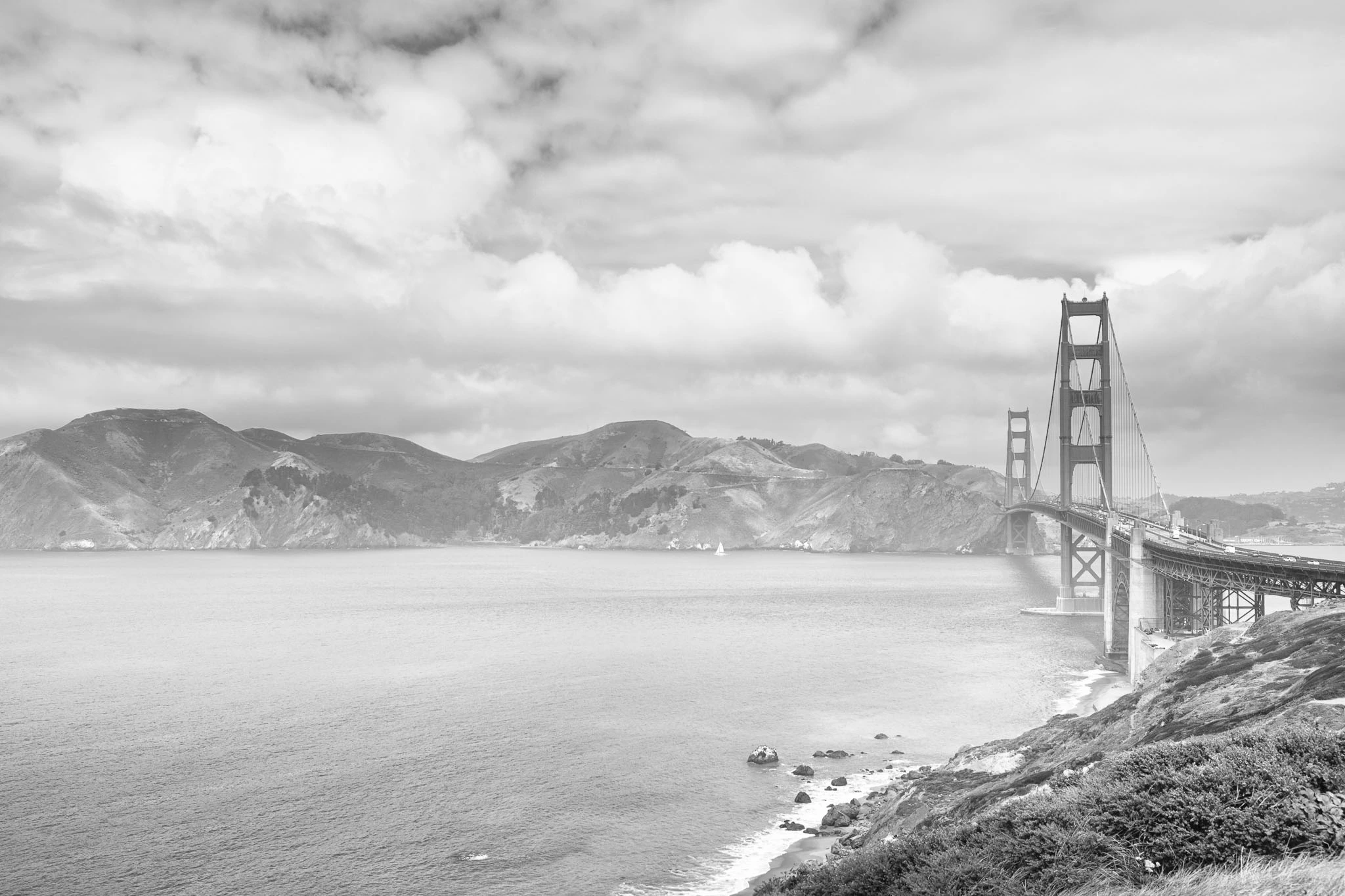
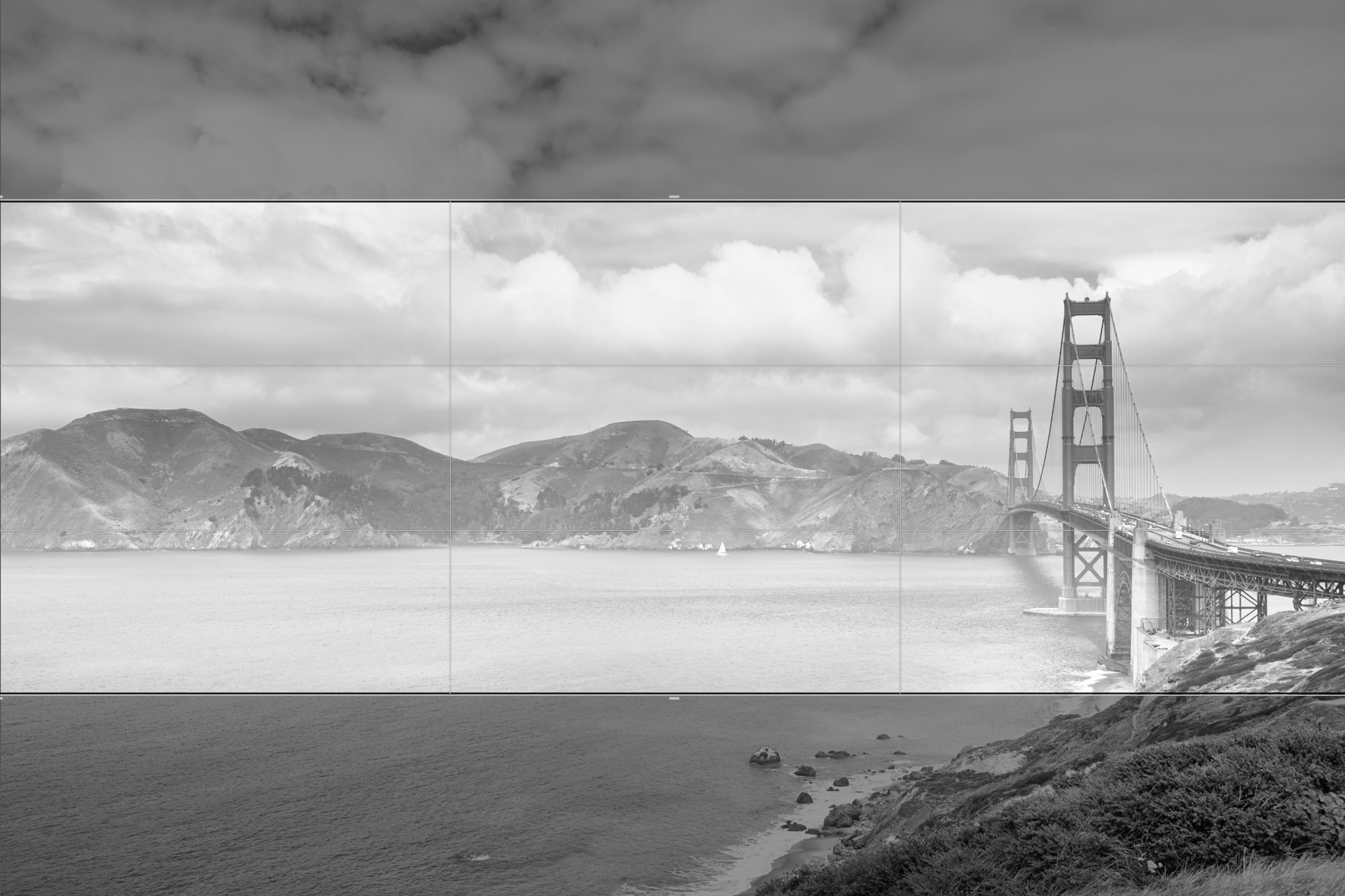
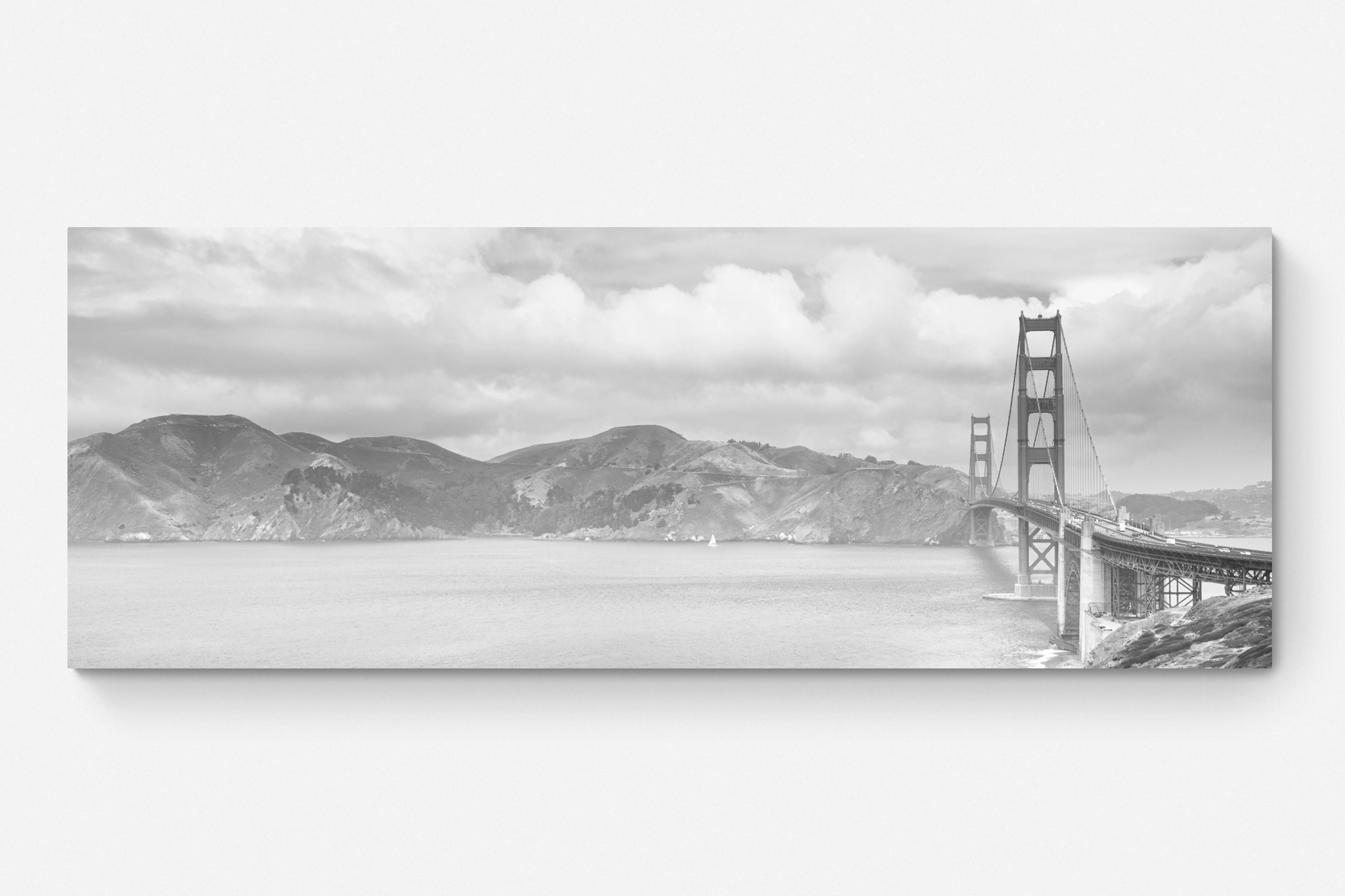
When starting with a high-megapixel photograph, stitching multiple images together is often unnecessary to achieve a panoramic format. Instead, you can crop a single frame in Lightroom Classic while retaining substantial resolution. Here’s the workflow we recommend:
- Press R or select the Crop tool in the Develop module
- Choose your desired aspect ratio and reposition the crop to achieve the best composition rather than relying on the default centered placement
- Make any final adjustments, if needed, and review the cropped photograph
- Export the image using the appropriate settings for its intended use
For print work, preserve the cropped image’s original pixel dimensions and export a high-quality file in the format and color space required by your printer. For web use, resize and optimize the image rather than uploading an unnecessarily large file. The original RAW file and its cropped version should remain intact in your catalog.
Lightroom Classic already provides everything you need to crop and export panoramic photographs, so there’s no reason to use additional software just to achieve a wider aspect ratio. Once you’ve finalized your composition, consider Luminar for a more atmospheric look or Dehancer for a film-inspired finish.
Panoramic Photo Dimensions and Resolution
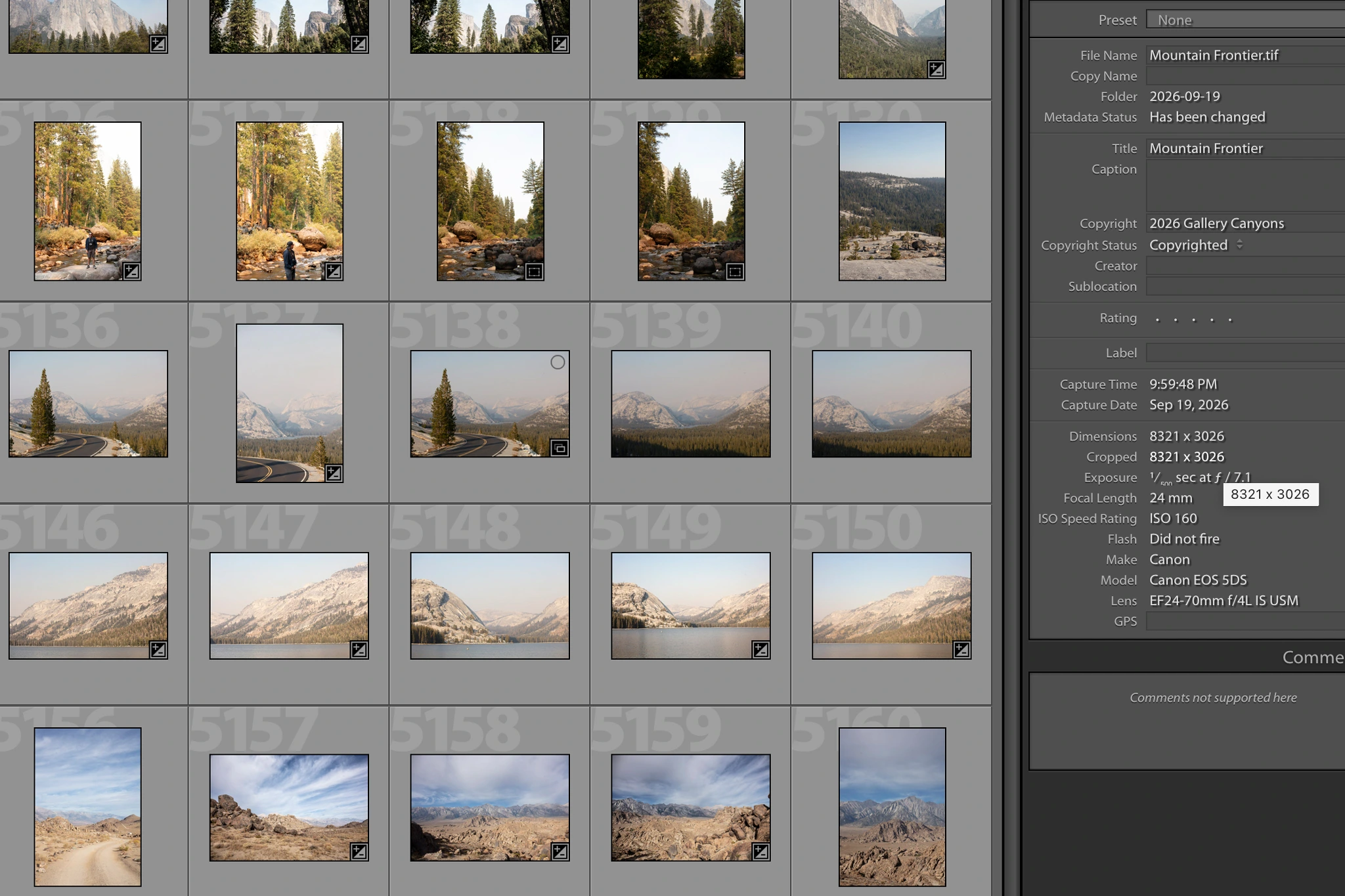
As shown in our example table using a Canon EOS 5DS RAW file, cropping a photograph reduces its pixel count because part of the original image is removed. This matters when printing, especially at larger sizes.
At ClickwithSal, we appreciate the high resolution offered by cameras like the Canon EOS 5DS and EOS R5. Whether you prefer a DSLR or mirrorless camera, both are strong options for photographers who need flexibility when cropping. Their high-resolution sensors allow you to retain substantial detail after cropping, providing enough pixels for many large-format prints without necessarily requiring upscaling. While upscaling can improve the appearance of larger prints, it may also introduce artificial details or artifacts. Starting with a high-resolution photograph helps preserve the original image quality, even when printing at larger sizes.
Another way to create panoramic images is by stitching multiple photographs together. Neither method is inherently better. Stitching can produce higher-resolution panoramas, but combining multiple frames also introduces the possibility of alignment errors, ghosting, visible seams, and distortion. These imperfections can become more noticeable when printing at larger sizes. We prefer cropping when a single high-resolution photograph already contains everything needed for the final composition. We’re not opposed to stitching. We simply don’t believe it should be the automatic starting point for every panoramic photograph.
We recommend stitching when:
- You want to capture a wider field of view than a single photograph can accommodate
- You need additional resolution for larger prints or more demanding applications
Panorama Image Size FAQs
There is no single standard panorama image size. Common panoramic aspect ratios include 2:1 and 3:1. The actual pixel dimensions depend on the camera’s resolution and how much of the original photograph is cropped.
A 2:1 aspect ratio is a versatile starting point for landscape photography, while 3:1 creates a wider, more cinematic composition. Gallery Canyons prefers approximately 2.75:1 for panoramic prints because it balances horizontal width with enough vertical detail to preserve the composition.
Open your photograph in Lightroom Classic’s Develop module and press R to activate the Crop tool. Select a custom aspect ratio, such as 2:1 or 3:1, then reposition the crop to achieve the strongest composition. Lightroom applies the crop nondestructively, preserving the original RAW file.
Cropping reduces the total number of pixels by removing portions of the original image, but it doesn’t inherently reduce the sharpness of the remaining pixels. A high-resolution photograph can retain enough detail for large prints even after substantial cropping.
Key Takeaways
- Common panorama aspect ratios include 2:1 and 3:1, but there is no universal format. The best ratio depends on the composition and intended use
- You don’t need to stitch multiple photographs to create a panorama. A single high-resolution image can be cropped into a wide format while retaining substantial detail
- High-resolution cameras like the Canon EOS 5DS and EOS R5 retain substantial detail even after cropping to 3:1, providing enough resolution for many large panoramic prints
- Cropping refines an existing composition, while stitching can capture a wider field of view and potentially deliver greater resolution
Affiliate Disclosure: Some links or promo codes in this article may earn us a commission if you buy through them, at no extra cost to you. That does not change our opinion. We recommend tools based on whether they actually fit the workflow.










Leave a Reply